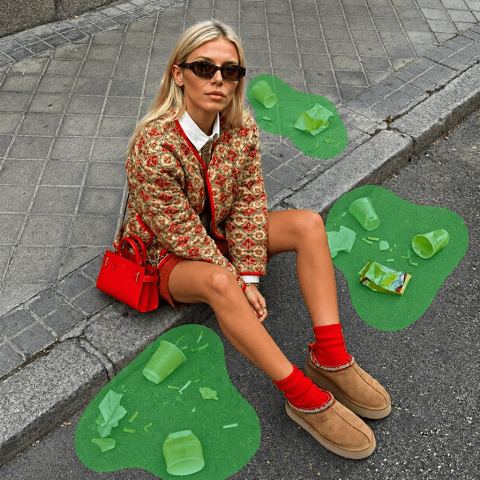
Remove people from photos — just describe who to erase
Type who shouldn't be in the shot, like "man in a red jacket on the left", and the AI erases them and fills the gap with the wall, street or scenery that belongs there.
- $0.01per image
- 1photo to upload
- 0prompts to write

How it works
- 1Upload
Add one photo — the form tells you exactly what fits best.
- 2Adjust
Optional fields steer the result: style, mood, text to render.
- 3Download
Get a finished image in seconds, then iterate or try a variation.
Examples
 BeforeAfter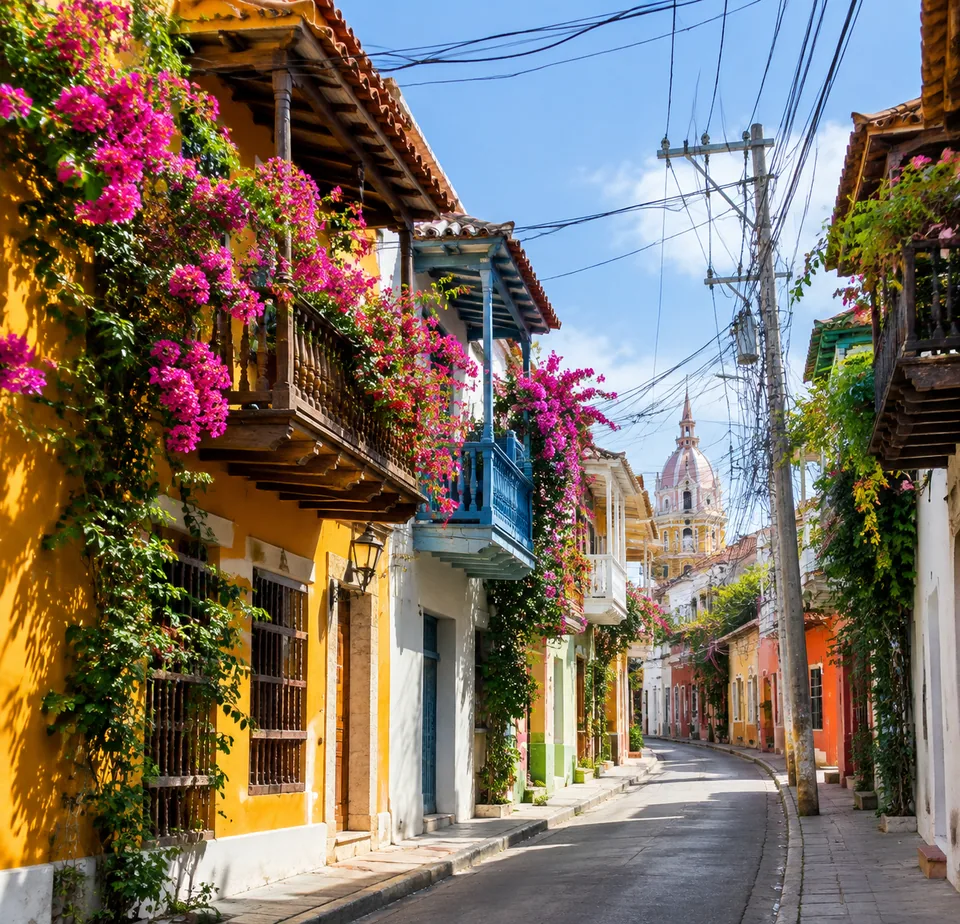
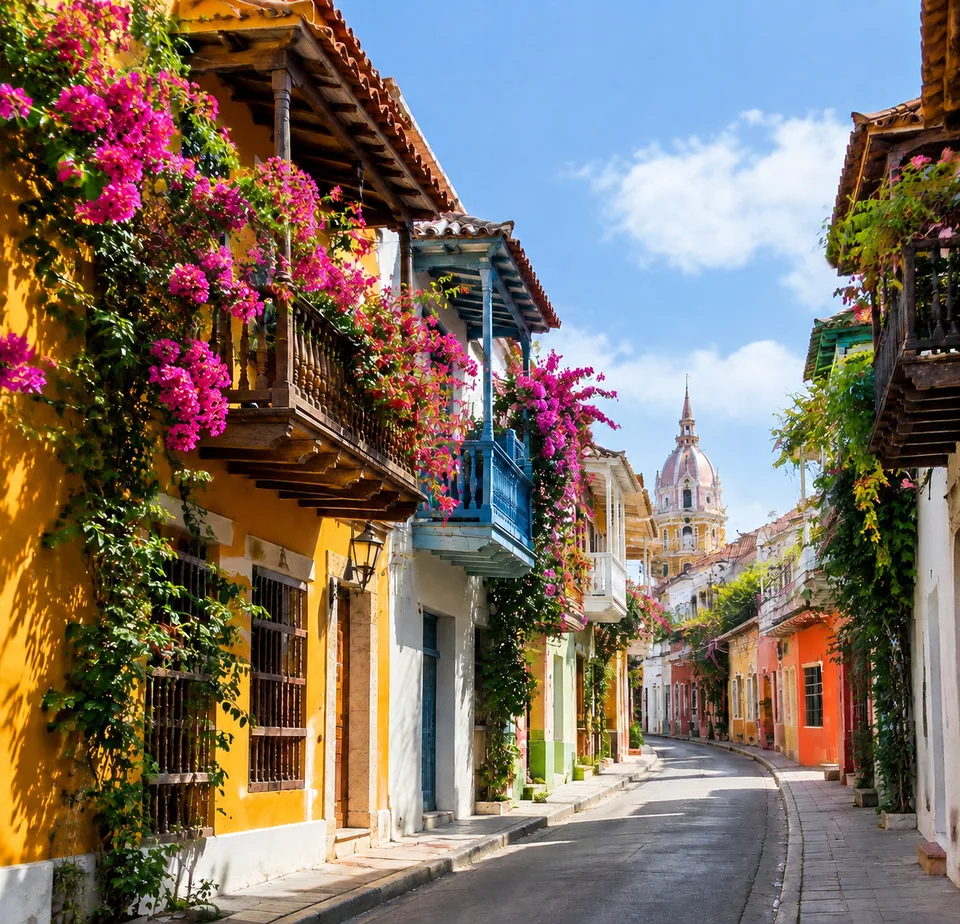 BeforeAfter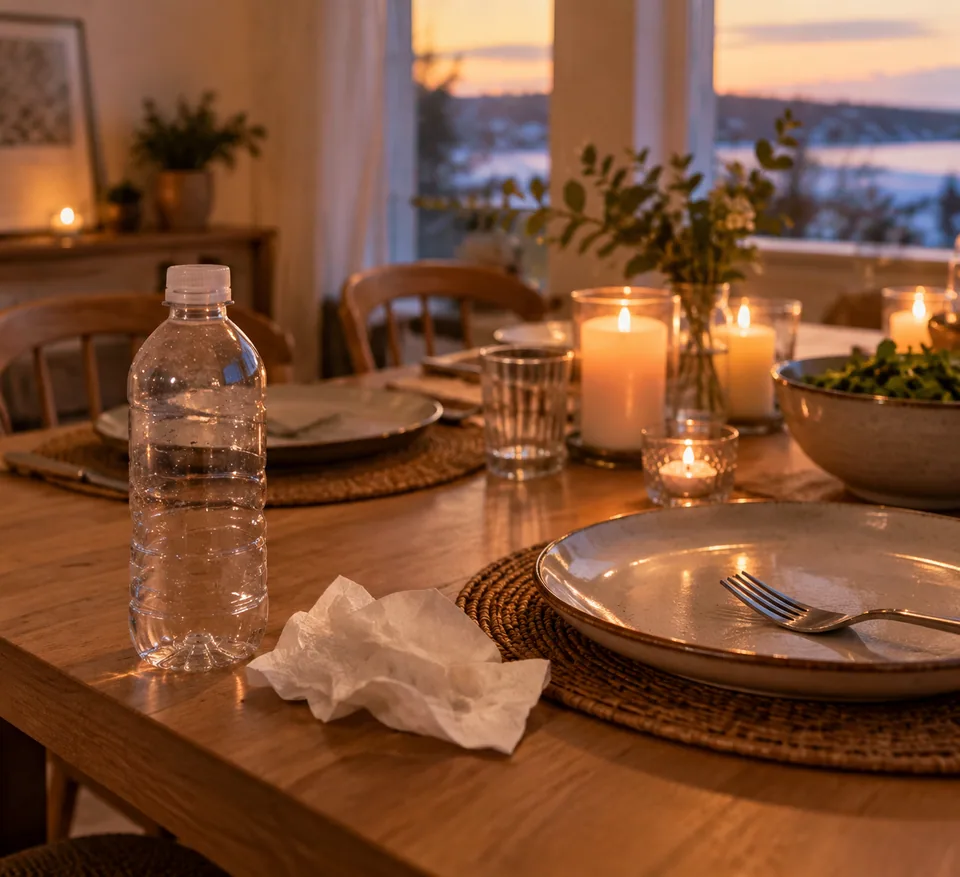
 BeforeAfter
How to remove people from photos by describing them
To remove people from photos here, you don't brush over anyone or draw a selection. You upload the picture and write a short note in the field for what to remove. The model looks for exactly what you wrote, so the wording does most of the work.
A reliable description combines two or three clues. Position: "on the left edge", "in the background behind the bench", "standing in the doorway". Clothing or props: "red jacket", "yellow backpack", "white baseball cap". Pose or action: "walking away from the camera", "sitting on the steps", "taking a phone photo". Put together, that becomes "man in a red jacket on the left, walking away from the camera".
A bare "person" only works when there's one obvious stranger and one obvious subject. As soon as several people share the frame, vague wording can hit the wrong one.
Remove tourists from a travel photo
This is the classic use case. You finally get the light right in front of a cathedral, a waterfront or a famous viewpoint, and the background is full of tour groups, selfie sticks and a line for the gift shop.
If there are two or three strangers standing apart, list them with commas: "woman with an umbrella on the right, two men by the fountain in the background". If the crowd is dense, start with the biggest, most distracting figures, download the result, upload it again and clear the rest in a second pass. Smaller gaps per pass give cleaner fills.
The fill is built from the photo itself. The model continues the paving, railings, water, foliage or skyline and matches the light and perspective of the surrounding area, so the patch doesn't look pasted in. Anything you didn't name is left alone by design — you and your travel companions stay exactly as they were.
Removing an ex or someone from a group photo
Some photos matter too much to delete: a friend's wedding, a graduation, a great vacation shot. But the person standing next to you is someone you'd rather not see anymore. Describe them the same way you would a stranger — "man in a blue shirt to my right" — and the moment stays in your album without the reminder.
Group photos are trickier. When people stand shoulder to shoulder, the model has to erase one person and also guess what the neighbor's arm and shoulder looked like behind them. Removing someone at the end of a row works best, since there's usually background visible behind them. Removing someone from the middle of a tight group is possible, but the remaining people may look oddly spaced.
Keep the other people in mind too. Before you post an edited group shot on Instagram or Facebook, make sure the people who remain are fine with it.
Beyond personal photos, and a word on rights
The same trick helps with work images. A real estate agent wants a storefront or lobby without passersby. A café wants a dining room shot without a random guest at the corner table. Creators get a cleaner thumbnail without a stranger in focus.
It runs in the browser and in the Telegram bot, pay as you go with no subscription. The same balance covers the other image tools, chat with dozens of models and the API.
Only use it on photos you took or have the rights to edit. It is not meant for altering documents, evidence, insurance or incident photos, or anything where removing a person would misrepresent what happened.
Who it's for
Travelers and families
Clear tourists and strangers out of vacation shots and family photos. The picture stays the same moment — only the unwanted figure is gone.
Creators and social media
Clean up event and street photos so only the people who agreed to be in your post are visible.
Real estate and local businesses
Show a building, lobby, shop floor or restaurant without people wandering through.
Photographers
When a stranger walks into an otherwise perfect frame, erase them without opening a desktop editor.
Pro tips
- Describe the person with two or three clues: where they stand, what they wear, what they're doing. "Woman in a green coat, background right" beats just "woman".
- Crowded background? Work in passes: remove the largest figures first, then upload the result and clear the rest.
- Upload the original file, not a screenshot or a re-compressed messaging copy. More background detail gives the model more to work with.
- Include traces of the person: a shadow on the pavement, a reflection in a window, a bag at their feet. For example, "man on the left and his shadow".
- If the filled area doesn't look right, run a variation — the model rebuilds the gap a little differently each time.
Good to know
- If the person overlaps your main subject — standing in front of them, holding their hand, covering part of their face — the model has to invent what was hidden, and results drop noticeably.
- When the unwanted person fills half the frame or stands large in the foreground, the area to rebuild is too big and the background may come out soft or implausible.
- Small reflections in glass, mirrors, sunglasses or puddles can be missed even when the person is gone. Name them separately.
- The fill is a plausible background, not a recovery of what was actually behind the person.
What it costs
- Pay only for what you generate — no subscription.
- One balance for image tools, chat with 52 AI models and the API.
- Free starter credits when you sign up, no card needed.
Questions
Can I remove several people at once?
Yes. List them in the field separated by commas, with a position and a detail for each. With more than three or four people, or a tight cluster, you'll get cleaner results by removing them over a few passes.
Will it change my face or anyone else I keep?
The model is told to change only what you named and leave the rest of the image alone, so faces and poses of the people you keep are preserved. A shoulder right next to the removed person may shift slightly.
How do I remove my ex from a photo without it looking obvious?
Describe them by position and clothing, for example "man in a gray suit to my left". If they had an arm around you, the model has to fill in that area with background, and the edge can look off. Try a couple of variations.
Can I remove someone from a group photo?
Removing a person at the end of the row works best, because there's background behind them. From the middle of a tight group it's possible, but you may end up with a visible gap between neighbors.
Does it work for removing tourists from landmark photos?
Yes, it's one of the best cases. Buildings, paving, water and sky rebuild well from nearby areas. Describe the tourists by where they stand and what they wear, and use several passes if there's a crowd.
Can I use it on someone else's photo or on documents?
No. Only edit photos you took or have the rights to use. Removing people from evidence, official documents, insurance or incident photos misrepresents facts, and the tool isn't meant for that.
Do I need an app or a subscription?
No app to install and no subscription. It works in the browser and in the Telegram bot, and you pay per generation from one balance shared with the other image tools, chat with dozens of models and the API.
A shadow or reflection is still there. What now?
Upload the result again and describe what's left, for example "shadow of a person on the ground to the right" or "reflection in the shop window on the left". A second pass usually clears it.
More image tools


Try AI Object Remover now
Free starter credits, no credit card. Works in any browser.
Open the tool — free