AI Photo Editor Online for Everyday Fixes
Pick the fix you need, upload your photo and get it back with only that one thing changed. Eight focused tools cover hair, color, backgrounds, clutter, old prints and blurry shots.
Tools in this category

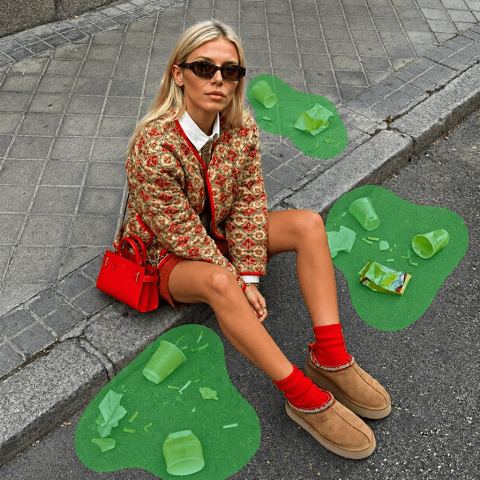
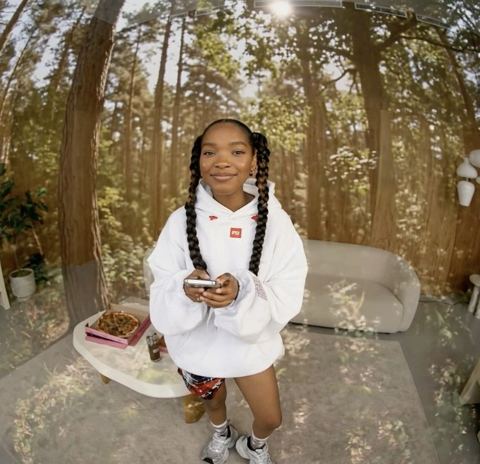
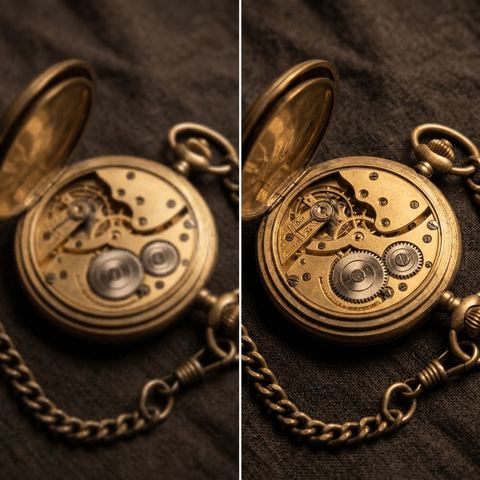
An AI photo editor online that does one job per tool
Most people don't need a full design suite. They need one specific change: a cleaner background, a product in navy instead of gray, a stranger gone from a vacation shot. This AI photo editor online is built around that idea. Instead of one crowded canvas, you get eight tools, and each one has a short form and a single purpose.
Behind every form is a detailed instruction to the model that spells out what to change and what to leave alone: faces, poses, lighting, composition. You don't write prompts. You upload an image, fill in a field or two if the tool asks, and get a result. If the first version isn't quite right, run another variation.
Every tool runs in the browser and in the Telegram bot, with GPT Image as the default model.
Which tool should you pick? A quick decision guide
Start with a simple question: what exactly should look different when you're done?
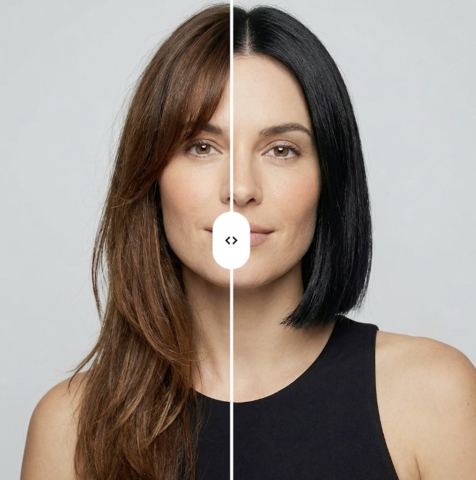
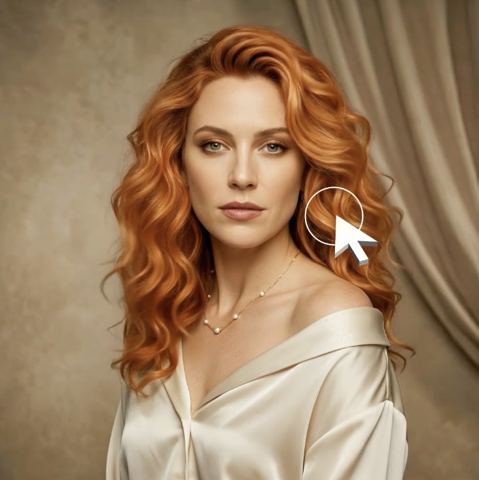
If it's the hair, you have two options. The Hairstyle Changer copies a whole haircut from a reference photo onto yours: shape, length, texture, part and color. The Hair Color Changer keeps your current cut and only changes the shade you type in, like "copper" or "platinum blonde." Have a picture of a cut you love? Use the first. Happy with the cut but curious about the color? Use the second.
If it's the color of anything else — a hoodie, a sofa, a car, a package — use Recolor. You name the target area and the new color, and texture, folds and shadows stay put.
If it's the setting, use Background Swap. You provide the new scene as a second image rather than describing it, and the subject is relit to match.
Remove clutter, restore prints, sharpen low-res shots
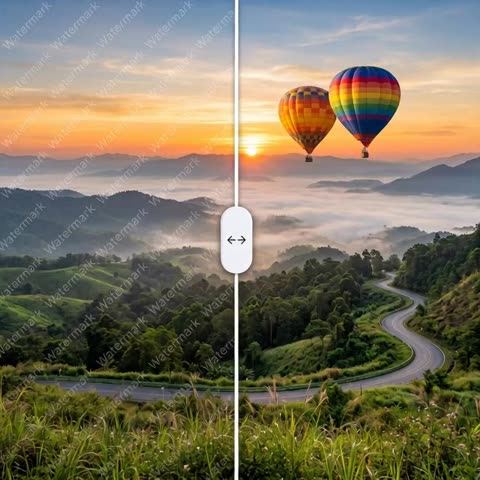
For removals, the difference comes down to control. The Object Remover erases exactly what you type in its field — "trash can on the left," "power lines" — and fills in the background. The Watermark Remover has no field: it strips every watermark, logo, stamp and overlaid caption in one pass. Use both only on images you own or have the rights to, such as your own photos, licensed stock or proofs you've paid for.
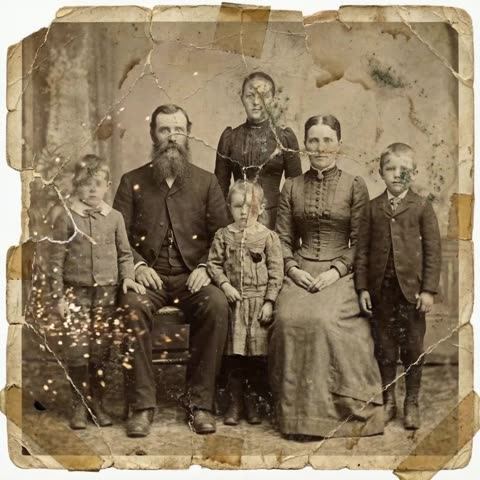
For quality, match the tool to the kind of damage. Photo Restoration is for physical prints: cracks, creases, tears, stains, fading and missing corners. It repairs them while keeping faces and the vintage feel intact. The Image Upscaler is for digital softness: blur, noise and compression artifacts from messaging apps or screenshots. It sharpens and recovers texture without adding or removing anything.
AI photo retouching for sellers, creators and brands
For Amazon, Etsy, Shopify and eBay listings, these tools turn one product photo into a set: Recolor for every colorway, Background Swap for lifestyle scenes, Object Remover for the charging cable you forgot to move, Upscaler for shots taken on a phone.
Creators and small brands use them to keep a feed consistent on Instagram, TikTok and Pinterest without reshooting. Agencies use them to mock up options for a client before booking a studio day.
Pricing is pay as you go with no subscription. The same balance covers image tools, chat with dozens of models and the API, and new accounts get a starter balance to try things out.
Who it's for
Online sellers
Shoot a product once and build the rest of the gallery from it: extra colorways, a kitchen or studio backdrop, a cleaner frame. Your storefront looks like it came from one consistent photo day.
Salons and stylists
Show a client a new cut or color on their own photo before you pick up the scissors or mix the dye. It makes consultations faster and helps clients commit with confidence.
Families and memory keepers
Scan a shoebox of old prints, repair the cracks and fading, and share them with relatives. Tidy up a travel photo by removing the tourist who walked into your shot.
Job seekers and creators
Turn a decent selfie into a LinkedIn-ready photo with a neutral backdrop and crisper detail. Keep thumbnails and posts polished without a photographer on call.
Pro tips
- For the Hairstyle Changer, choose a reference where the whole haircut is visible and the head is at a similar angle to yours.
- Be specific with colors: "warm honey blonde" or "matte forest green" gives more predictable results than "light" or "green."
- In Recolor and Object Remover, name the location when there are look-alikes: "left sneaker" or "person in the background on the right."
- For Background Swap, pick a scene with light similar to your photo; a sunny beach behind an indoor lamp-lit portrait is harder to blend.
- Scan old prints flat in even light instead of photographing them under a lamp, so glare isn't mistaken for damage.
- Chain tools in a sensible order: remove clutter or swap the scene first, then run the Upscaler on the finished image.
Good to know
- Photo Restoration repairs damage but doesn't colorize black-and-white photos; it keeps the original character.
- The Upscaler can't invent detail that was never captured: a license plate or face that is only a few pixels wide won't become accurate.
- The Watermark Remover removes all overlaid text at once; you can't choose to keep one caption and drop another.
- When the object you remove covers a large part of the frame, what's behind it is an educated guess and may not match the real location.
Questions
What's the difference between the Hairstyle Changer and the Hair Color Changer?
The Hairstyle Changer needs a reference image and transfers the entire cut, including its color. The Hair Color Changer only needs your photo and a typed shade, and it leaves your current cut alone.
Can I use Recolor to change hair color?
You can, but the Hair Color Changer is tuned for hair and handles roots, strands and highlights more naturally. Recolor is the better fit for clothing, furniture, vehicles and packaging.
Can I describe a new background in words?
No. Background Swap takes the new scene as a second image. That way you get the exact room or street you chose, with perspective, shadows and color temperature matched to your subject.
My photo is blurry. Should I use restoration or the Upscaler?
Use restoration for old physical prints with cracks, stains or fading. Use the Upscaler for modern digital photos that are soft, noisy or compressed.
Can I remove a watermark from an image I found online?
No. The Watermark Remover and the Object Remover are meant only for images you own or have the rights to use. Removing marks from someone else's work to reuse it can infringe their copyright.
Will my face change after the fix?
Each tool is instructed to preserve identity, pose and everything unrelated to the task. On tricky angles small shifts can happen; running another variation usually solves it.
Do I need a subscription?
No. You pay for each generation from a shared balance that also works for chat with dozens of models and the API. New accounts get a starter balance.
Can I use these tools on my phone?
Yes. Open them in your mobile browser or use the Telegram bot, which has the same forms. Upload a photo from your camera roll and the result comes back in the chat.